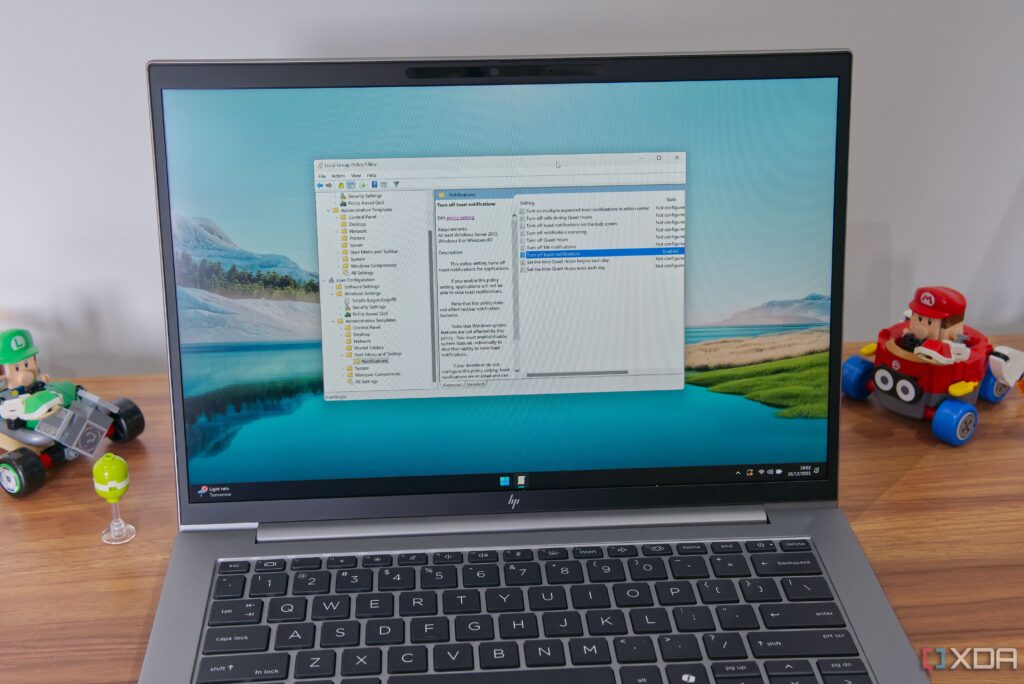
URGENT UPDATE: Windows 11 users are scrambling to enhance their experience as Microsoft’s default settings continue to frustrate millions worldwide. The Group Policy Editor, available in Windows 11 Pro and higher, offers critical tools to take control of automatic updates, OneDrive, and intrusive notifications—issues plaguing users since the OS release.
Recent reports confirm that users can now disable automatic updates that disrupt workflow and lead to unexpected restarts. This is particularly relevant as many users face data loss due to sudden update installations. The Group Policy Editor allows users to configure settings to manage updates effectively. To do this, navigate to Computer Configuration > Administrative Templates > Windows Components > Windows Update and enable the Configure Automatic Updates policy. This option lets users select when updates install, significantly reducing interruptions.
Moreover, users should consider disabling the legacy policy No auto-restart with logged on users for automatic update installations. Activating this setting prevents Windows from restarting unexpectedly, a common pain point mentioned by frustrated users.
Another crucial step is to stop Windows from installing potentially problematic drivers with updates. By enabling the policy Do not include drivers with Windows Updates, users can avoid compatibility issues and ensure their systems run smoothly.
Additionally, OneDrive has become a notorious annoyance for many. After the initial setup, users find themselves automatically enrolled in the OneDrive system, cluttering their desktops with unwanted icons. To combat this, navigate to Computer Configuration > Administrative Templates > Windows Components > OneDrive and enable Prevent the usage of OneDrive for file storage. This setting will apply to all user accounts on the PC, providing relief for families using a shared computer.
Notifications, too, can become overwhelming in the age of digital communication. While users can turn off notifications individually or activate a strict Do Not Disturb mode, the Group Policy Editor provides a more balanced approach. By going to User Configuration > Administrative Templates > Start Menu and Taskbar > Notifications and enabling Turn off toast notifications, users can eliminate distracting pop-ups while keeping other notification elements intact.
As more users voice their frustrations over Windows 11’s defaults, the Group Policy Editor emerges as a powerful ally. Despite its limitations to Windows 11 Pro users, the editor’s capabilities can significantly enhance productivity and user satisfaction.
WHAT’S NEXT: Windows 11 users are encouraged to implement these changes ASAP to reclaim their productivity and avoid the chaos of Microsoft’s default settings. As the situation develops, it remains crucial for users to stay informed about updates and features that could further improve their Windows experience.
This urgent call to action signals that even amid frustrations, there are solutions available that can transform the Windows 11 landscape. Share your experiences and solutions with others, as this knowledge could greatly improve the everyday computing experience for countless users worldwide.