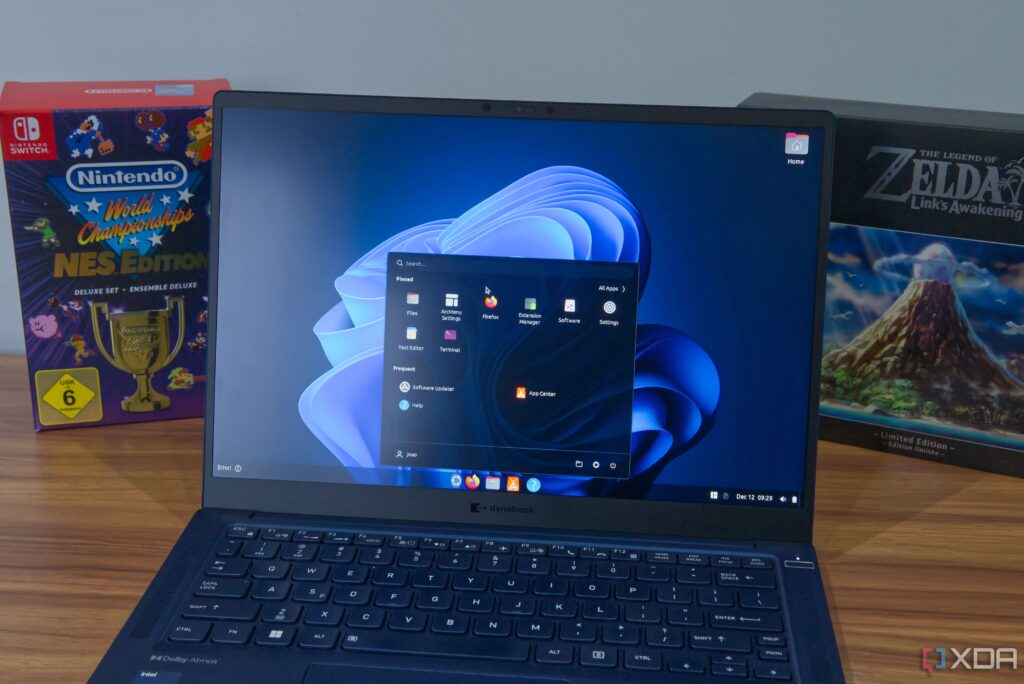
URGENT UPDATE: Tech enthusiasts can now transform their Ubuntu operating system to mimic the look and feel of Windows 11, making the transition smoother for users switching from Microsoft’s platform. This innovative guide, just published, provides immediate steps to customize Ubuntu, enhancing user familiarity and improving overall experience.
The shift from Windows 11 to Linux can be daunting for many users. However, with these new methods, you can retain the Windows aesthetic without resorting to lesser-known Linux distributions. Instead of risking support issues with niche distros, here’s how you can make Ubuntu feel like home.
To get started, users are required to install GNOME Extensions. These extensions are critical for mimicking the Windows interface. First, set up Flatpak and Flathub using the terminal. This installation opens the door to a new software app that simplifies the process of browsing for GNOME extensions. Once you’ve done this, search for the GNOME Extension Manager in the Software app, setting the stage for your customization journey.
Key features to replicate the Windows experience include a taskbar and a Start menu. The Dash to Panel extension is essential for creating a customizable taskbar that enhances functionality far beyond what the traditional Windows taskbar offers. Users can adjust sizes and positions, tailoring their interface for maximum efficiency.
For a Start menu that rivals Windows 11, the ArcMenu extension is invaluable. It provides a highly customizable Start menu, and by selecting the layout option titled “11,” users can closely replicate the Windows experience. Enhance your menu further by choosing default colors, while still having the freedom to personalize styles to your preference.
To ensure your Ubuntu installation matches Windows, consider adding extensions like Media Controls for audio playback, Notification Banner Reloaded for notification management, and SimpleWeather for a weather widget, all without the bloatware that often comes with Windows.
Additionally, for improved productivity, the Clipboard History extension allows users to revisit copied items seamlessly, even across system reboots. The Emoji Copy extension simplifies emoji usage, providing an experience that is both responsive and user-friendly.
Tiling window management is another area where Ubuntu shines. The included Tiling Assistant extension mimics Windows’ intuitive multitasking, while alternatives like Tiling Shell offer customizable layouts akin to the popular FancyZones tool in PowerToys.
Finally, don’t forget to enhance your desktop with Windows 11 wallpapers. The availability of high-quality images from Microsoft ensures your desktop feels just right.
This step-by-step guide not only makes Ubuntu resemble Windows 11 but enhances the overall user experience, offering features that Windows lacks. Users can now enjoy the familiarity of Windows while benefiting from the customization options that Ubuntu provides.
For those hesitant about switching operating systems, this guide offers a reliable, consistent experience that feels familiar yet transformative. Don’t miss out on these essential modifications to your Ubuntu setup—share this news with fellow tech enthusiasts today!